A tour of the screens

Pick a module and click the steps; click an image to enlarge it. Screens are shown with sample company data.
QUALIX · APQP
APQP — Track phases and tasks
APQP · Explore

Screens are shown with sample company data.
APQP · Plan

Advanced Product Quality Planning

Manage your product quality planning across five phases in one place — from setup to task tracking and progress.
APQP — Create a project
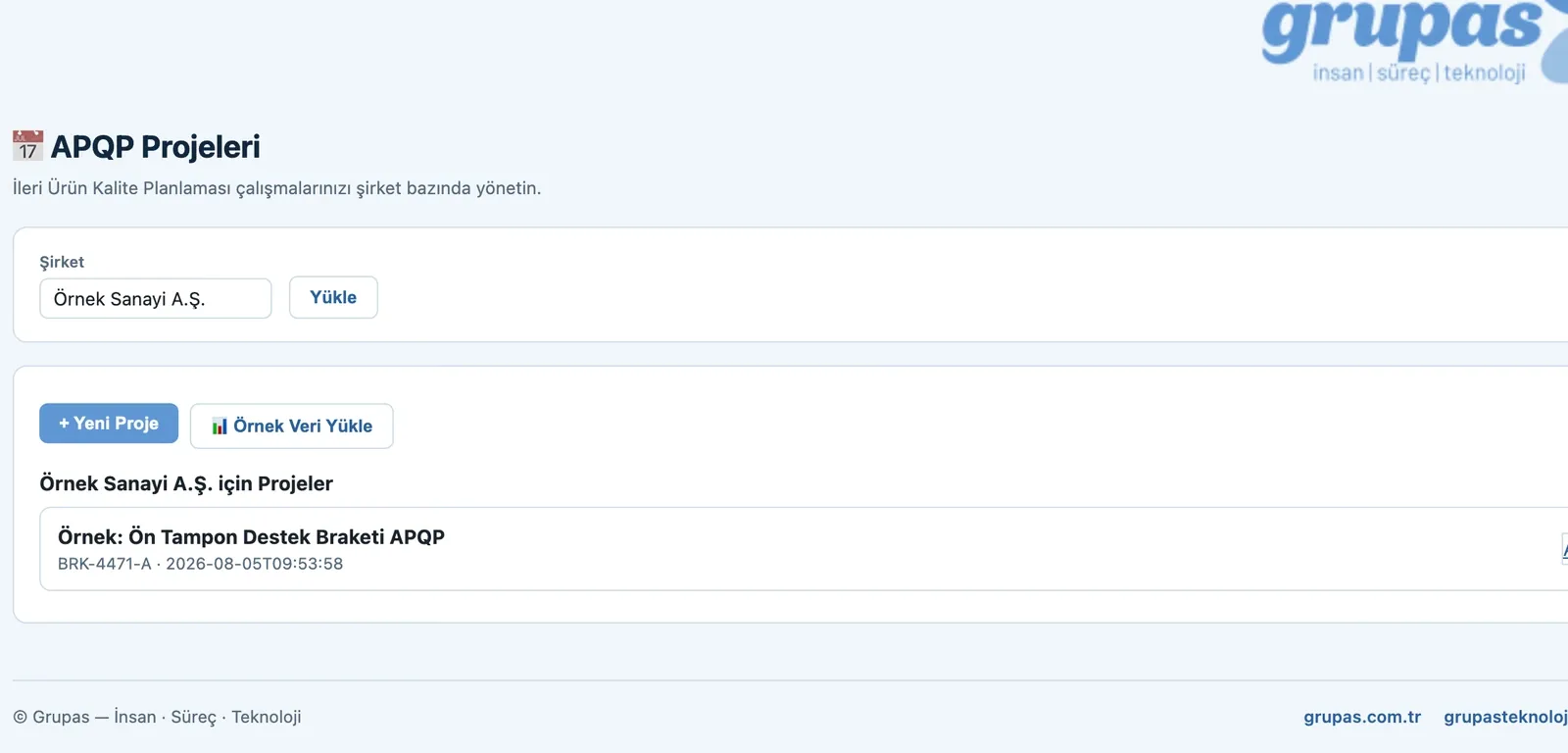
2. Create a projectEnter your company, create a new project or try ready sample data.
APQP — Project details & progress
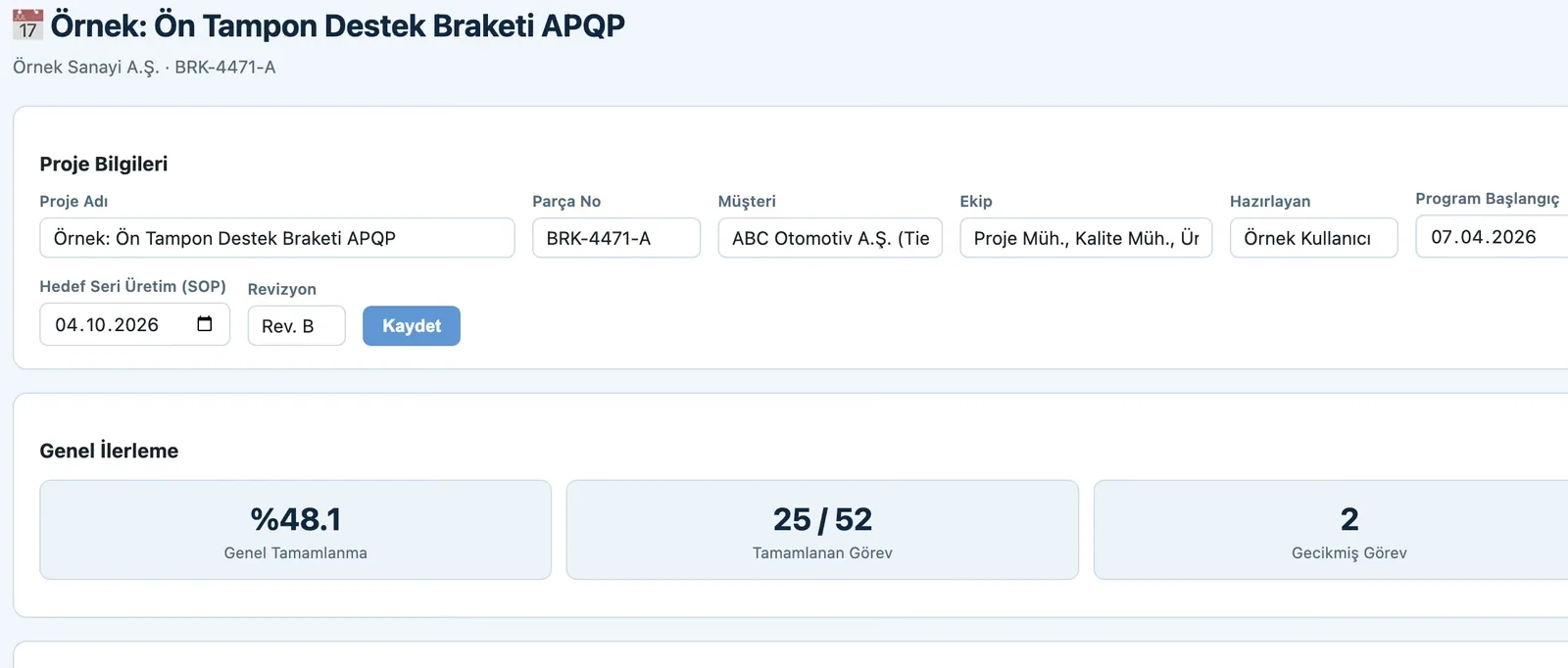
3. Project details & progressEnter part, customer, team and SOP date. Overall completion, number of completed tasks and overdue tasks are summarized instantly.
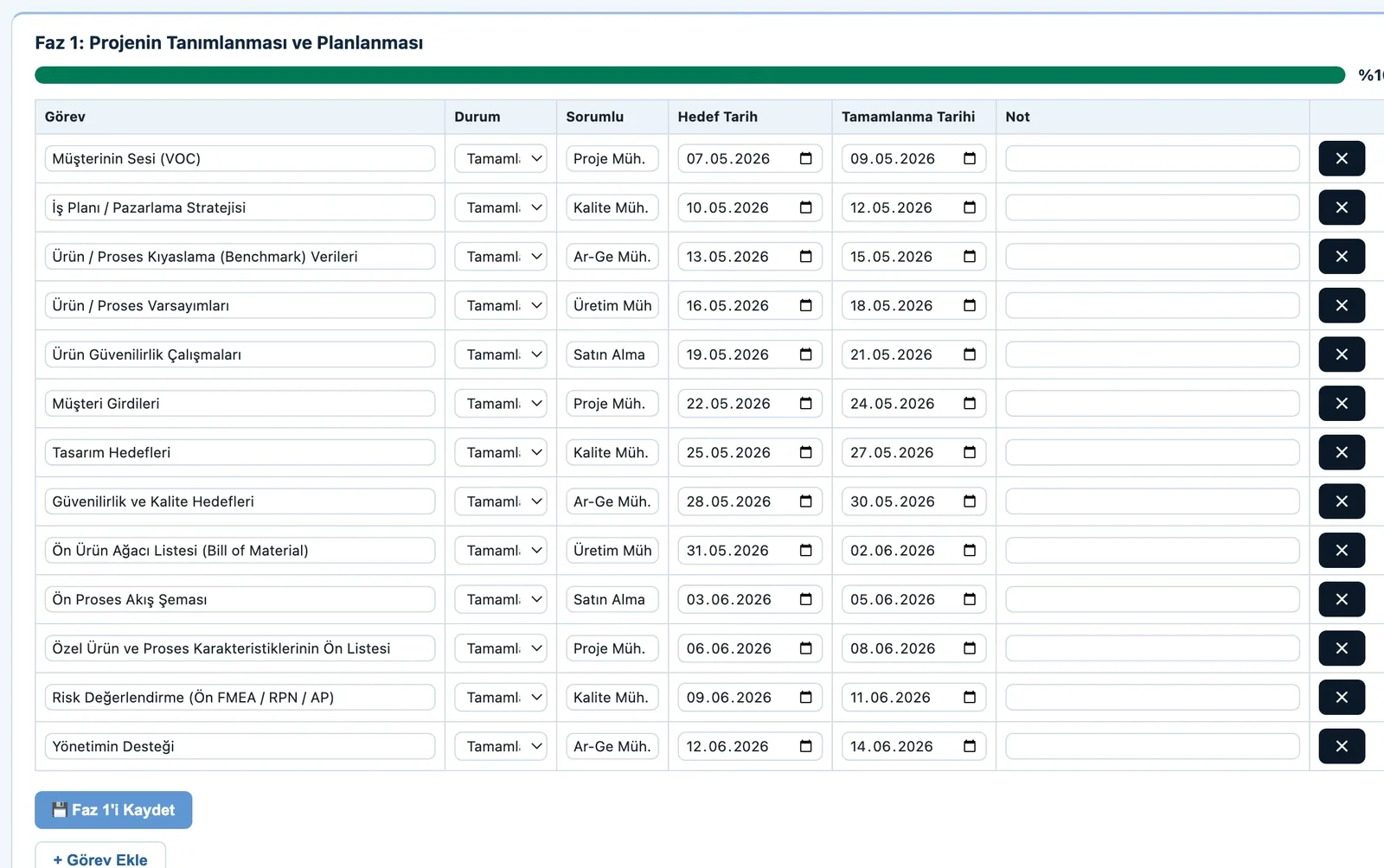
APQP — Track phases and tasks
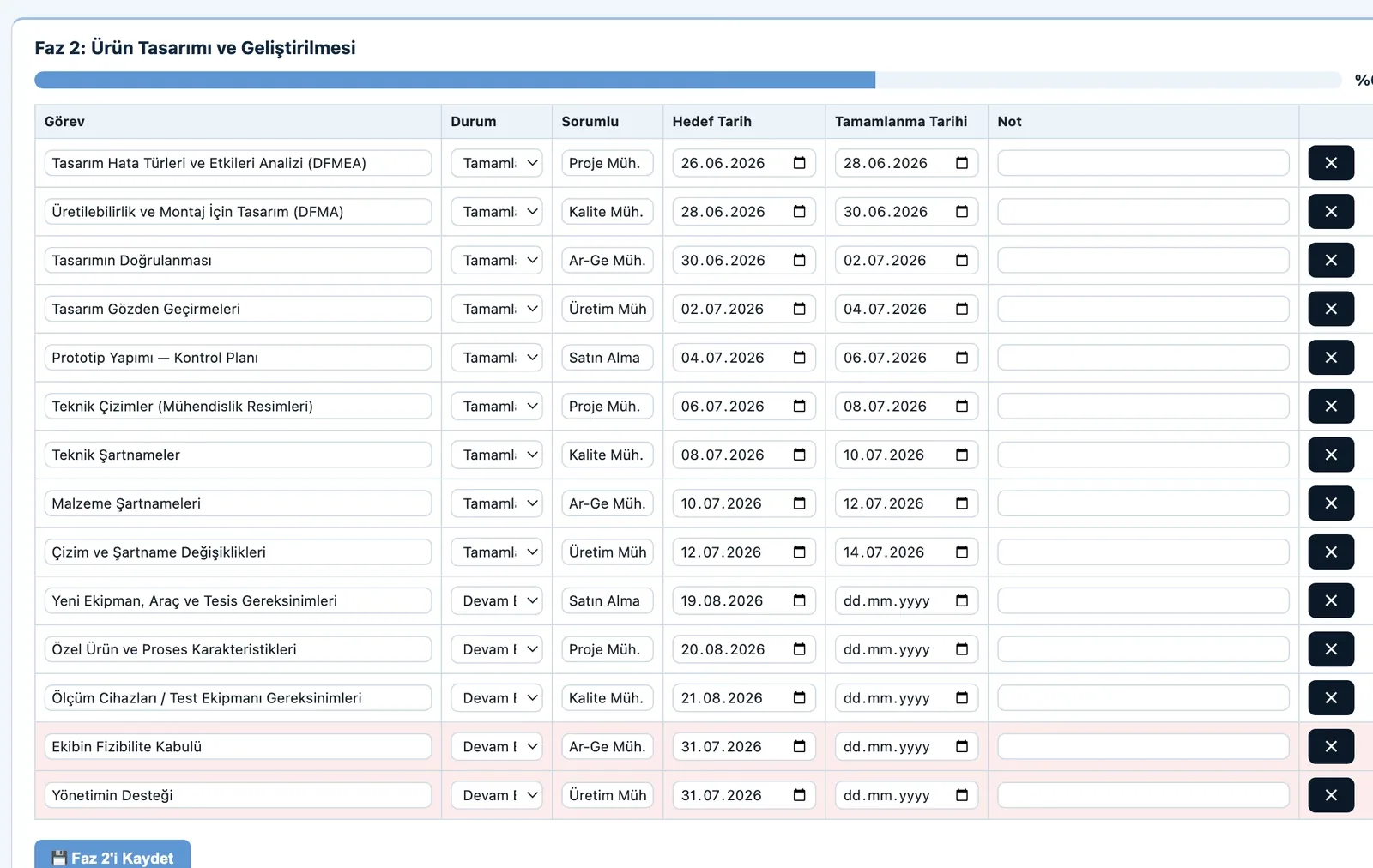
4. Track phases and tasksEvery task of the five APQP phases is listed with status, owner and target/completion date; each phase's progress bar updates automatically.
APQP — Update statuses & report
5. Update statuses & reportUpdate task statuses; overdue tasks are flagged and you are pointed to the related Control Plan / PPAP work.

APQP · Explore

FMEA · Analyze risk

Failure Mode and Effects Analysis

Run your FMEA end to end in a few steps — from setup to risk scoring and reporting.
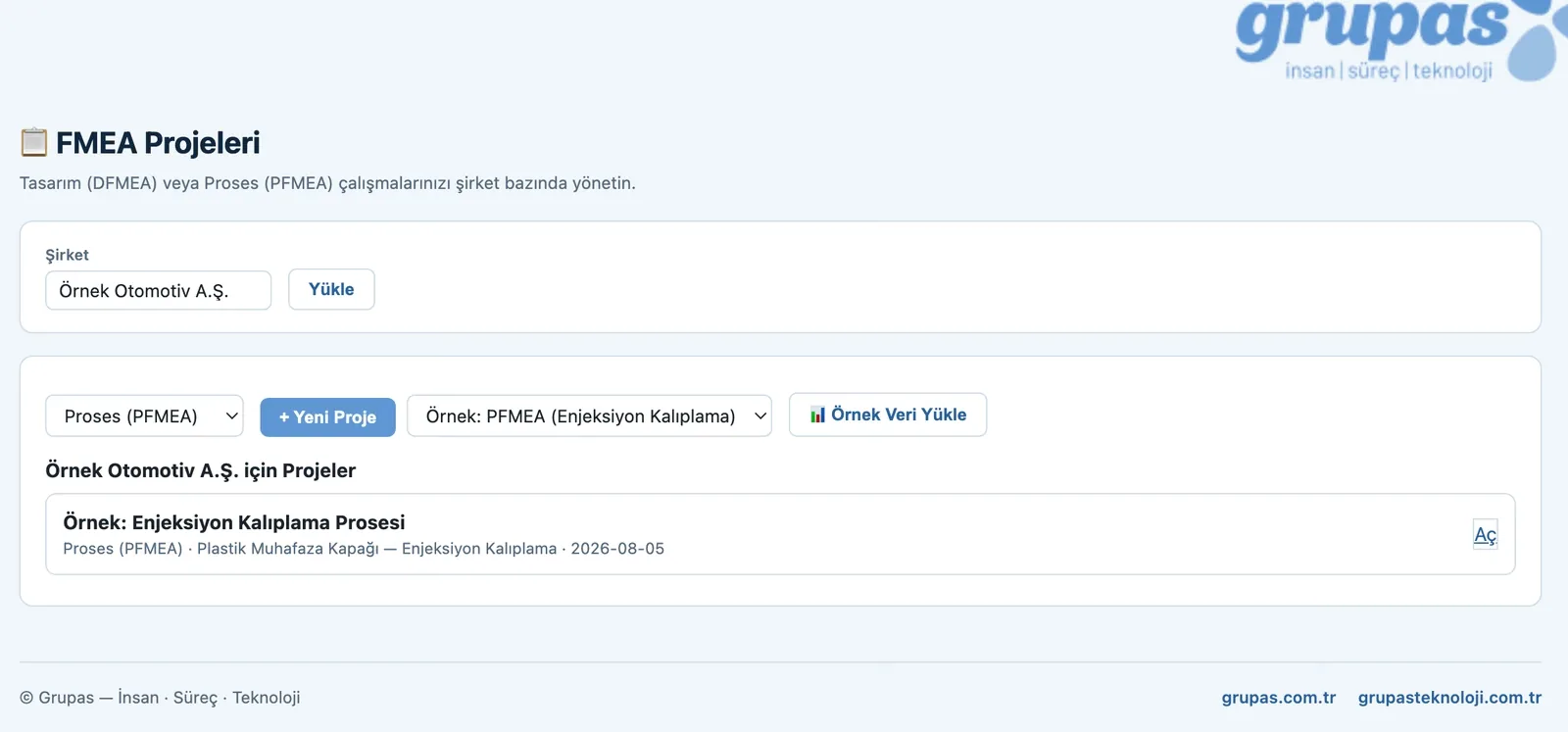
FMEA — Create a company and project
2. Create a company and projectEnter your company, choose Design (DFMEA) or Process (PFMEA); start from scratch or try ready sample data.
FMEA — Define project details
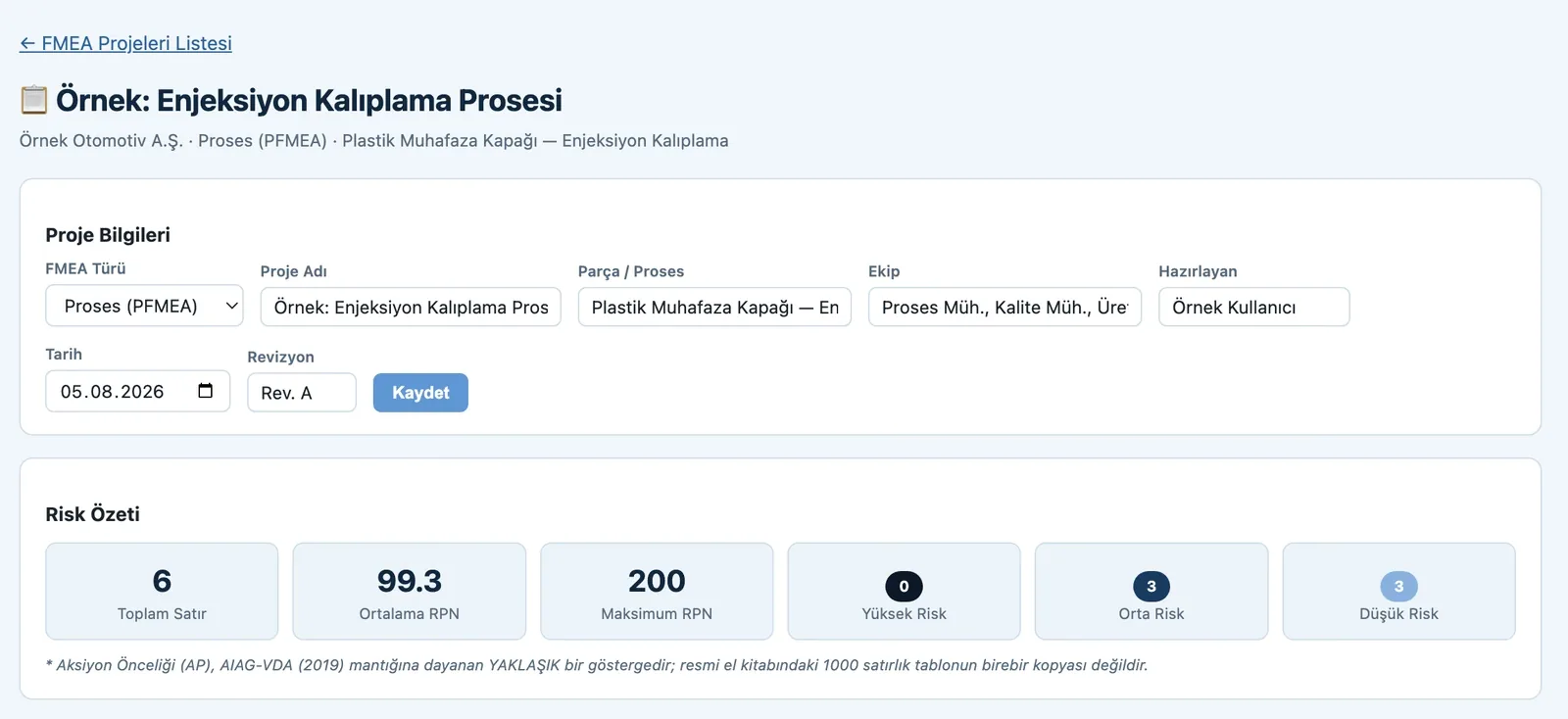
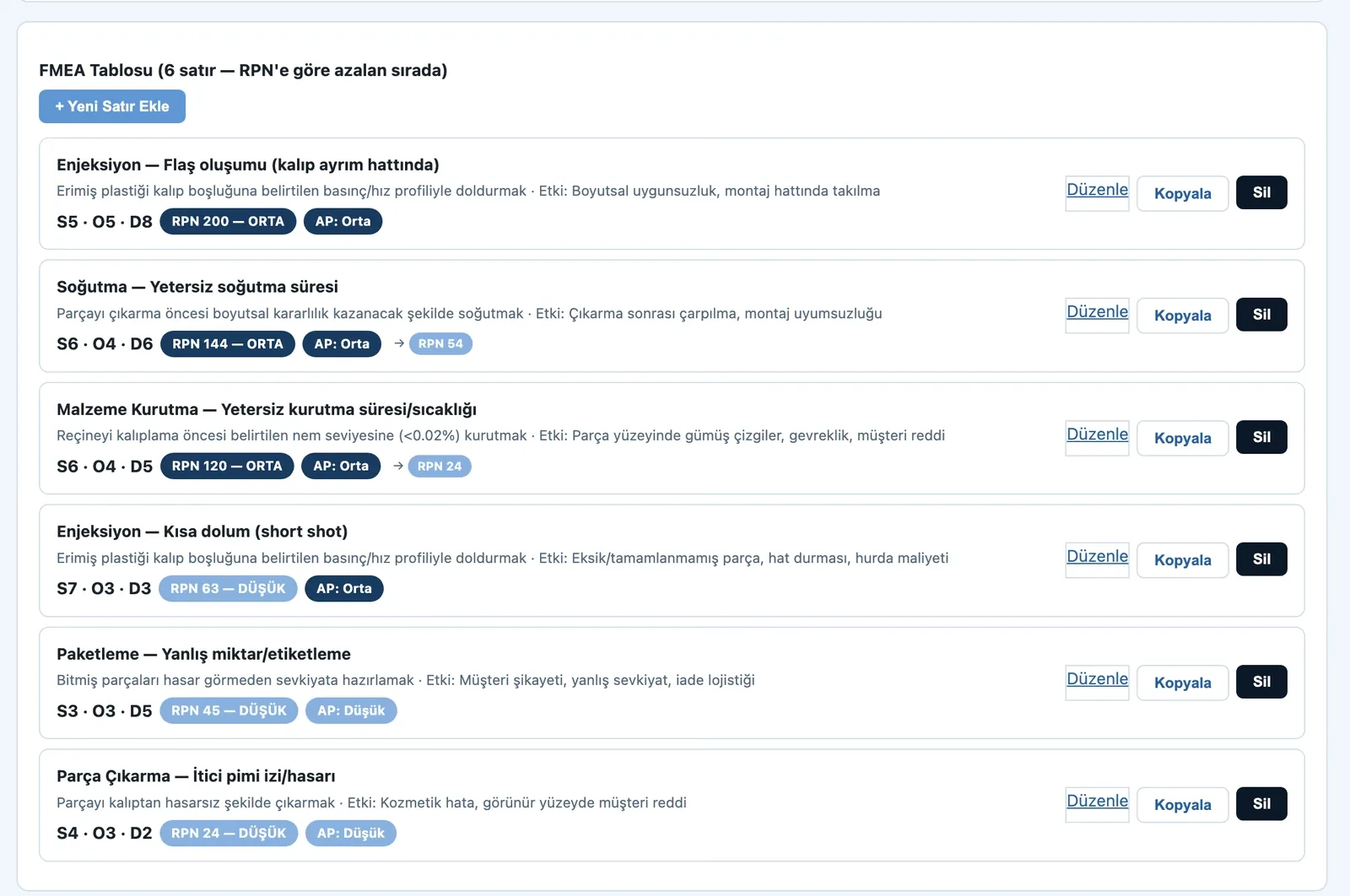
3. Define project detailsEnter part/process, team and revision. Average RPN, top risk and risk distribution are summarized instantly.
FMEA — Analyze failure modes
4. Analyze failure modesFor each step write the failure mode, effect and cause; rate Severity · Occurrence · Detection (S·O·D). RPN and Action Priority (AP) are computed automatically and rows are sorted by risk.
FMEA — Analyze and report
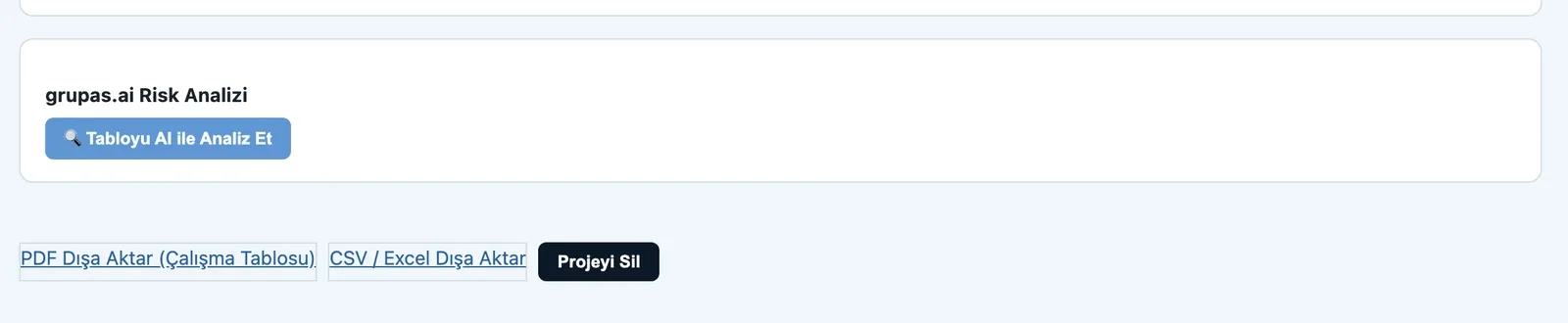
5. Analyze and reportLet grupas.ai analyze the table with AI; export the worksheet as PDF or CSV/Excel.

FMEA · Explore

CP · Define controls

Control Plan

Build your control plan in a few steps — from setup to control points and report.
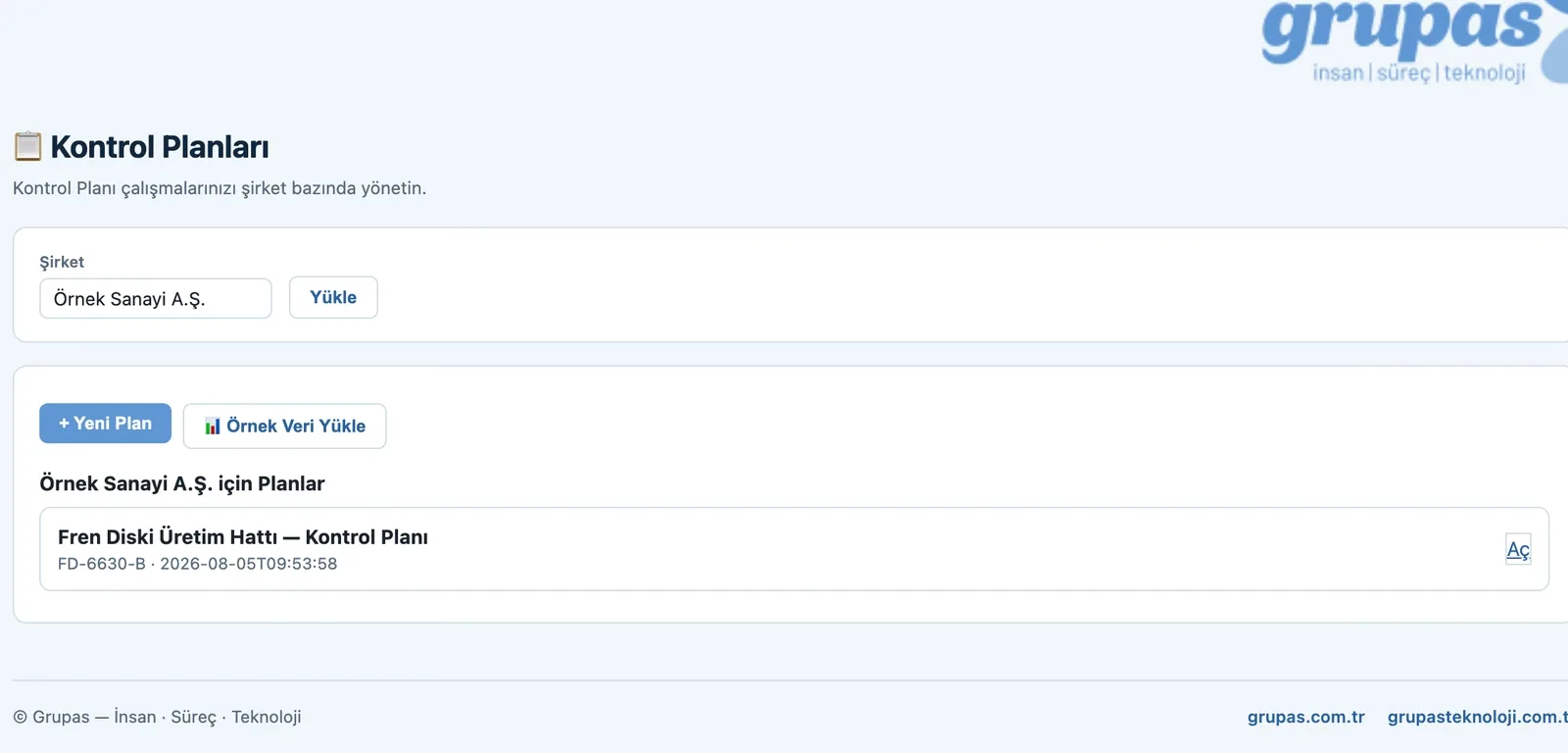
CP — Create a plan
2. Create a planEnter company, part and stage (Prototype / Pre-launch / Production); create a new plan or try ready sample data.
CP — Plan details & summary
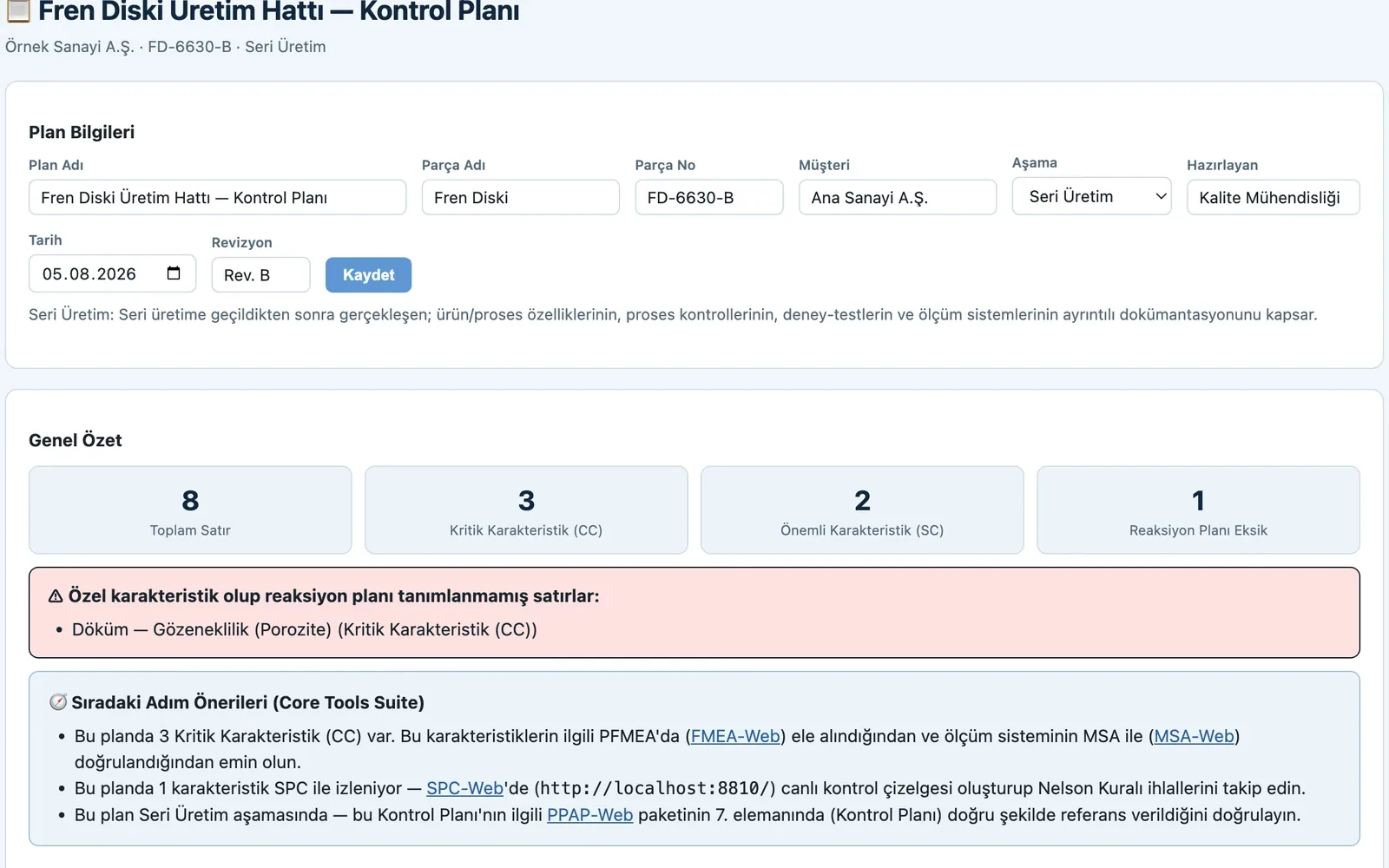
3. Plan details & summaryEnter part and stage. Total control rows, number of critical (CC) and significant (SC) characteristics and rows missing a reaction plan are summarized instantly.
CP — Define control points
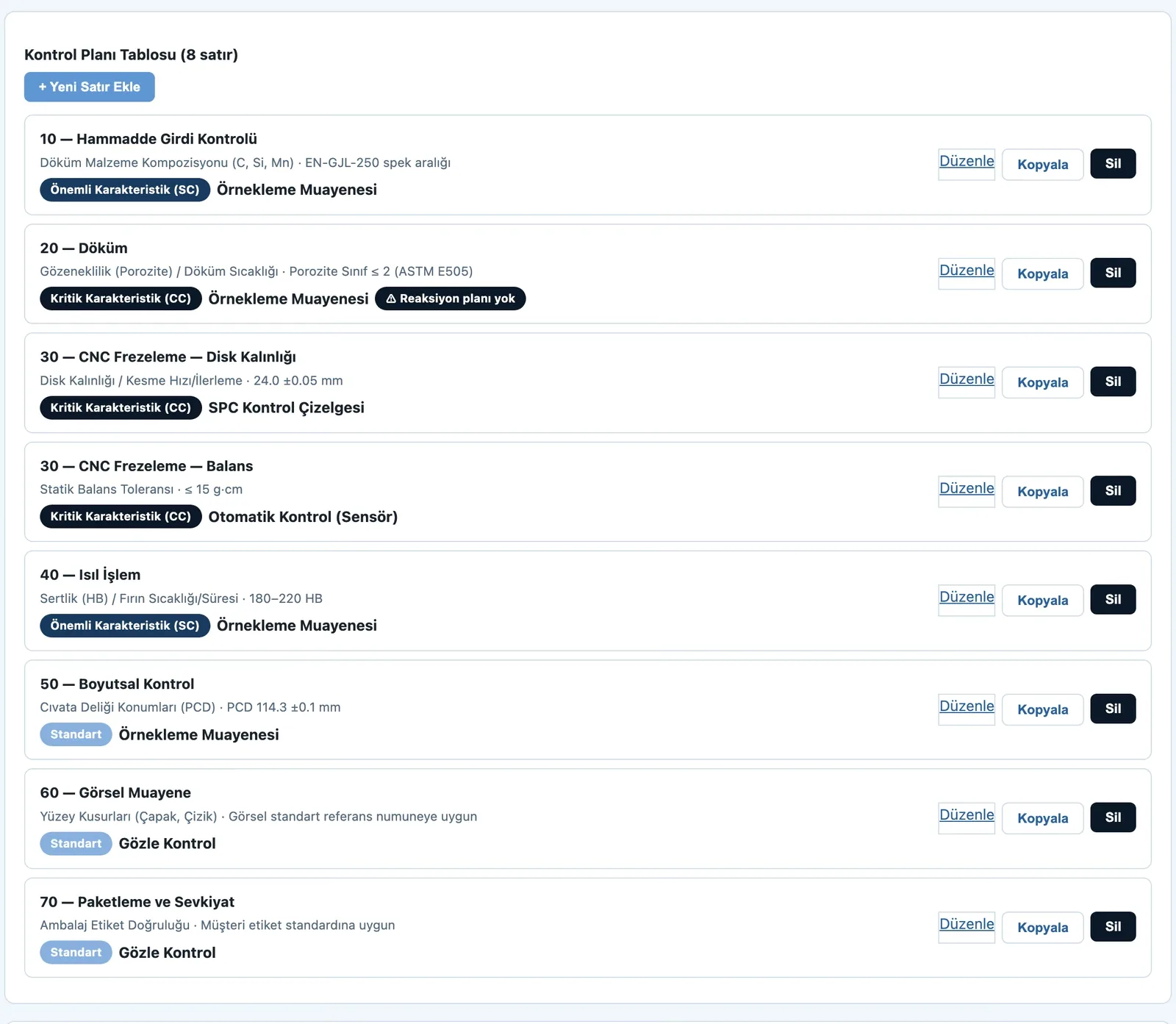
4. Define control pointsFor each process step enter the characteristic, specification/tolerance, CC/SC class, measurement/control method (sampling, SPC, automatic) and reaction plan.
CP — Analyze & report
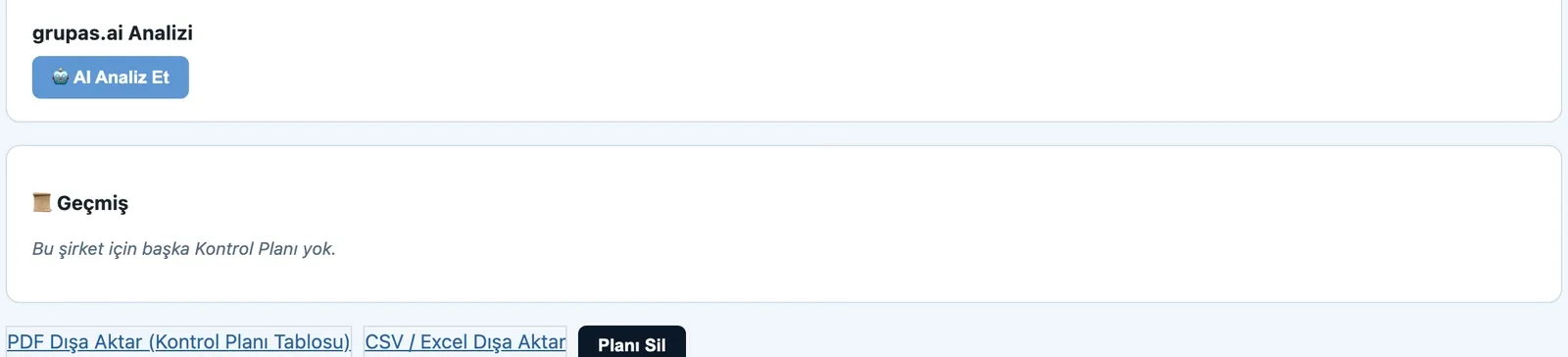
5. Analyze & reportAnalyze the plan with grupas.ai, see FMEA/MSA/SPC/PPAP integration suggestions; export the plan as PDF/CSV.

CP · Explore

MSA · Trust measurement

Measurement System Analysis

Assess your measurement system's reliability in a few steps — from study setup to the %GRR result and report.
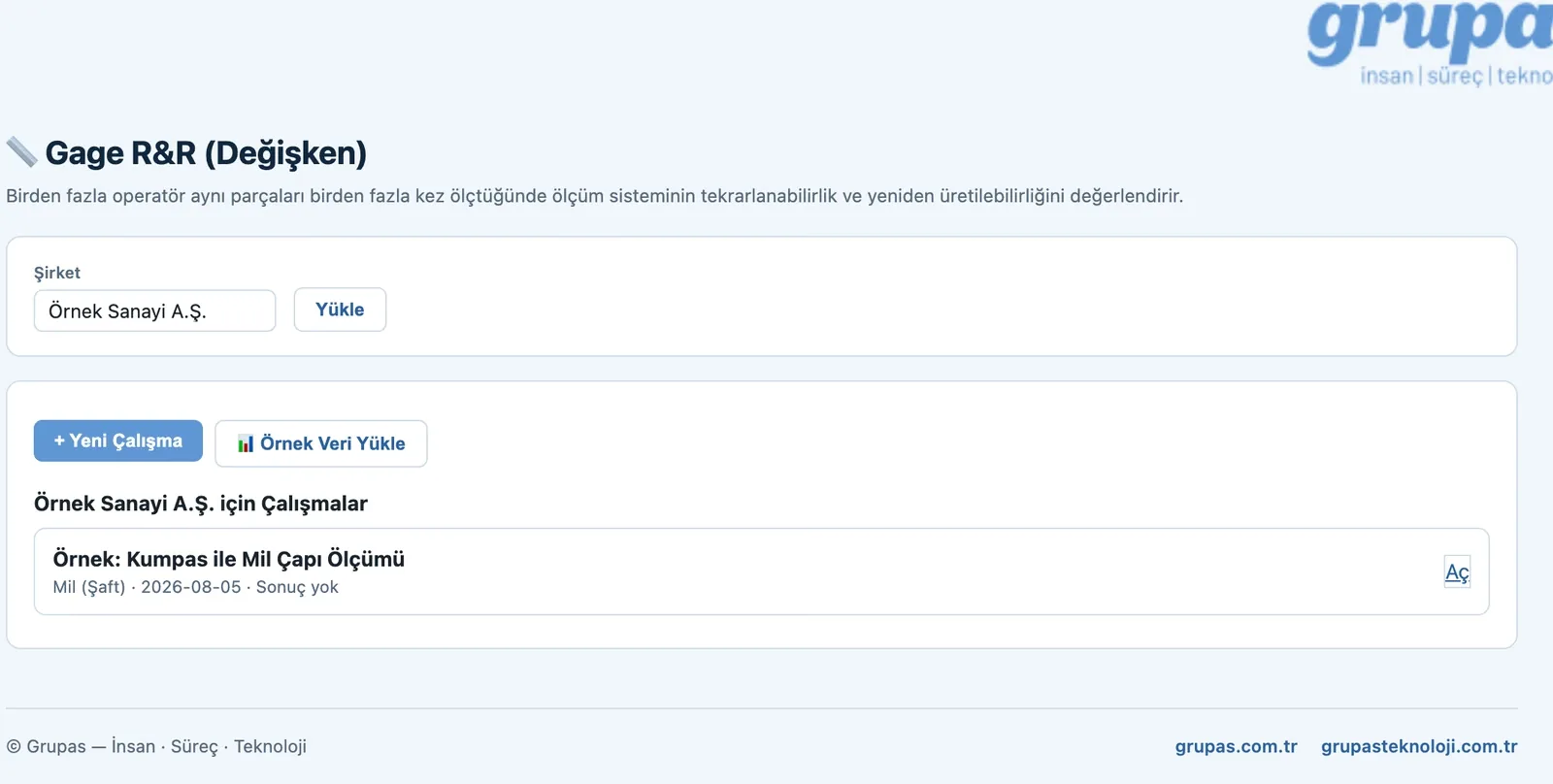
MSA — Create a study
2. Create a studyEnter your company, choose the study type; start from scratch or try ready sample data.
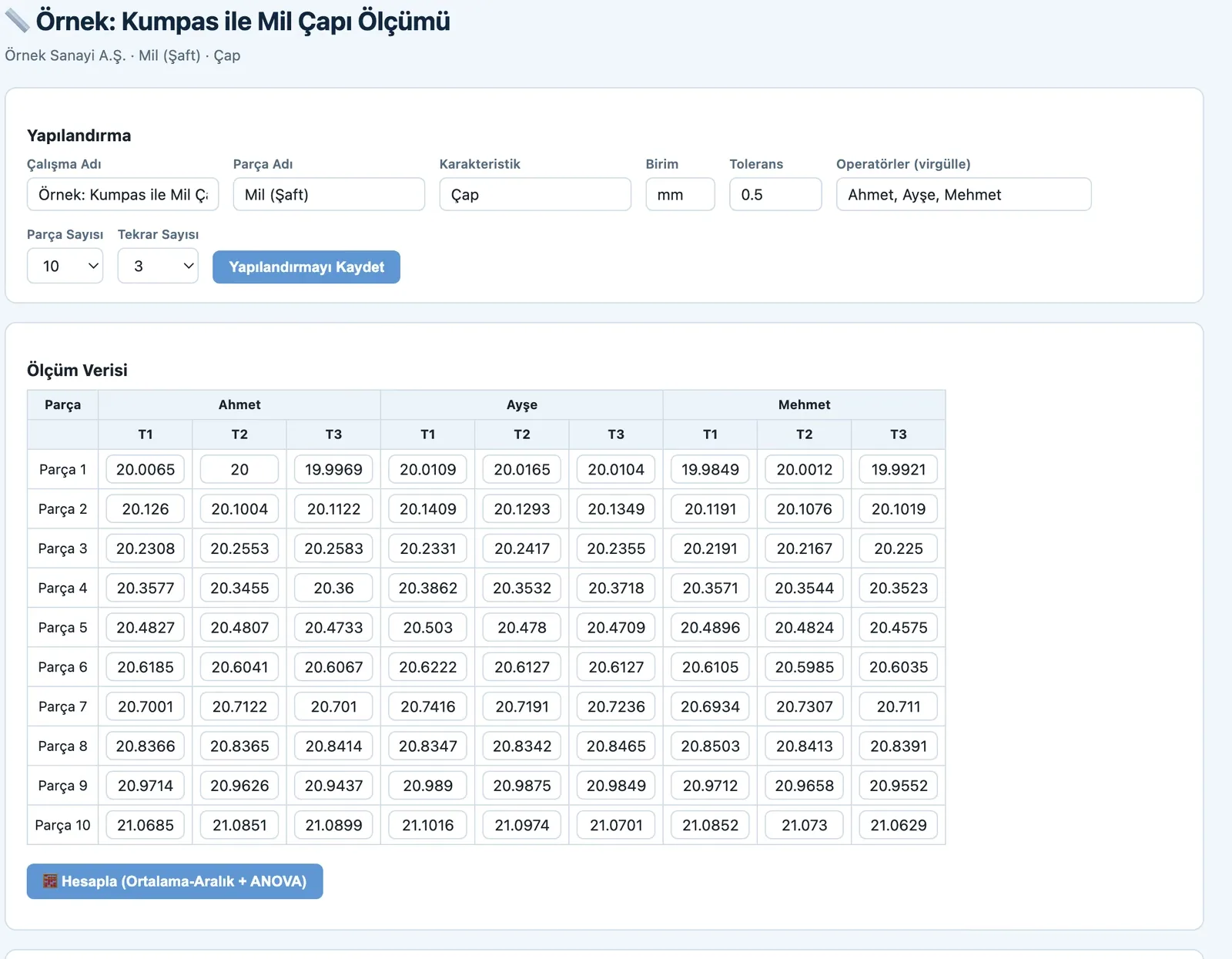
MSA — Enter measurement data
3. Enter measurement dataSet operators, parts and trials and enter the readings; an automatic part × operator × trial grid is built.
MSA — See the results
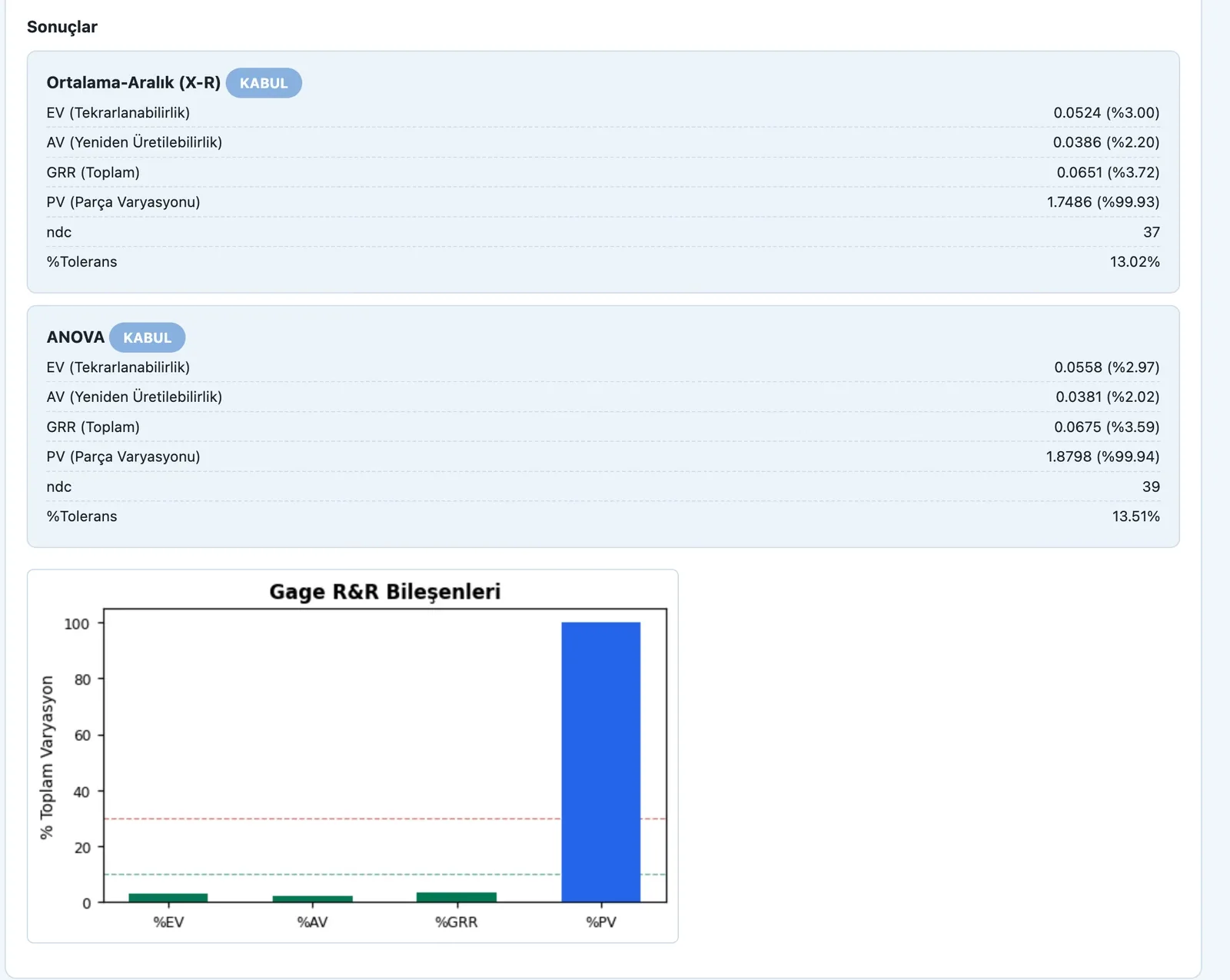
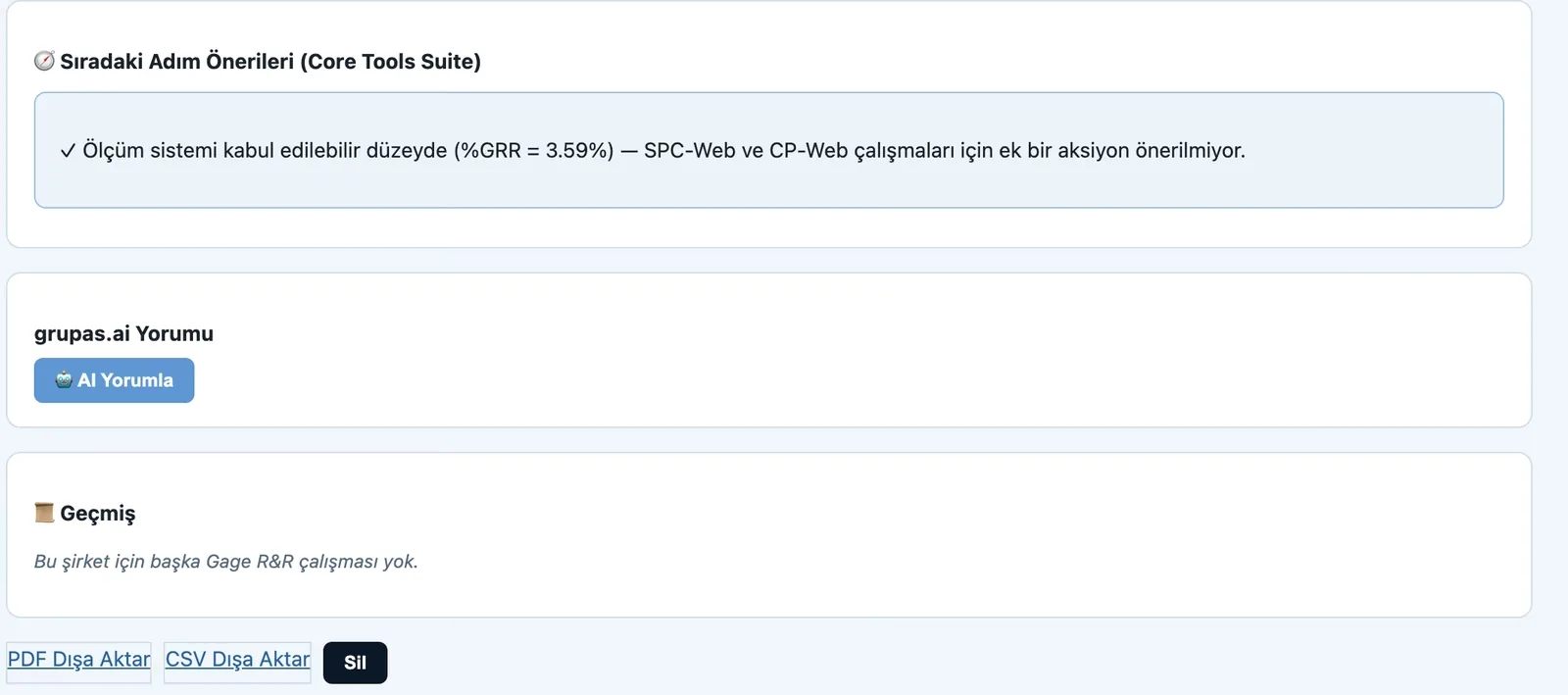
4. See the results%EV, %AV, %GRR, %PV, ndc and %Tolerance are computed with both Average-Range and ANOVA; accept/reject is judged automatically and shown on a component chart.
MSA — Assess and report
5. Assess and reportGet a grupas.ai comment, see SPC/CP integration suggestions; export the result as PDF or CSV.

MSA · Explore

SPC · Monitor the process

Statistical Process Control

Bring your process under statistical control — from data entry to control charts and process capability.
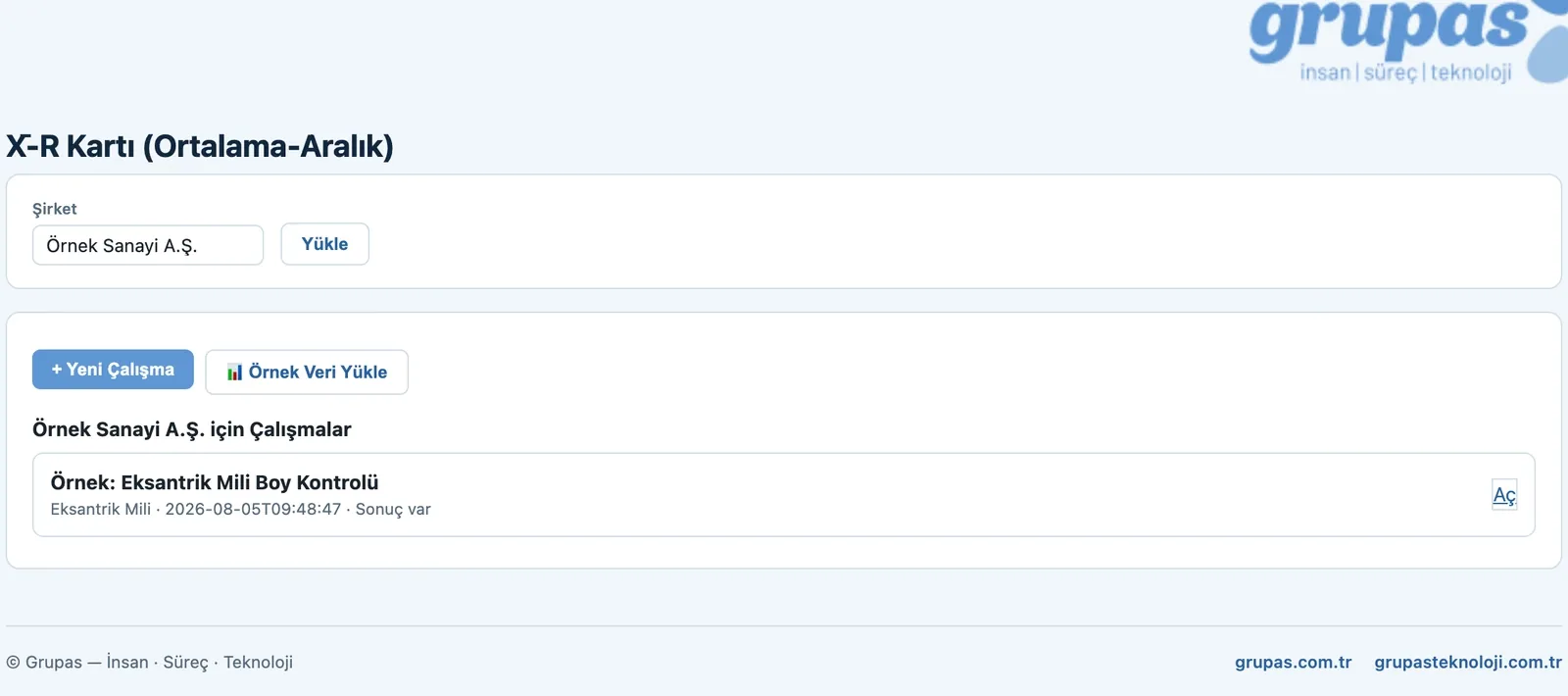
SPC — Create a chart
2. Create a chartEnter your company and choose the chart type; start from scratch or try ready sample data.
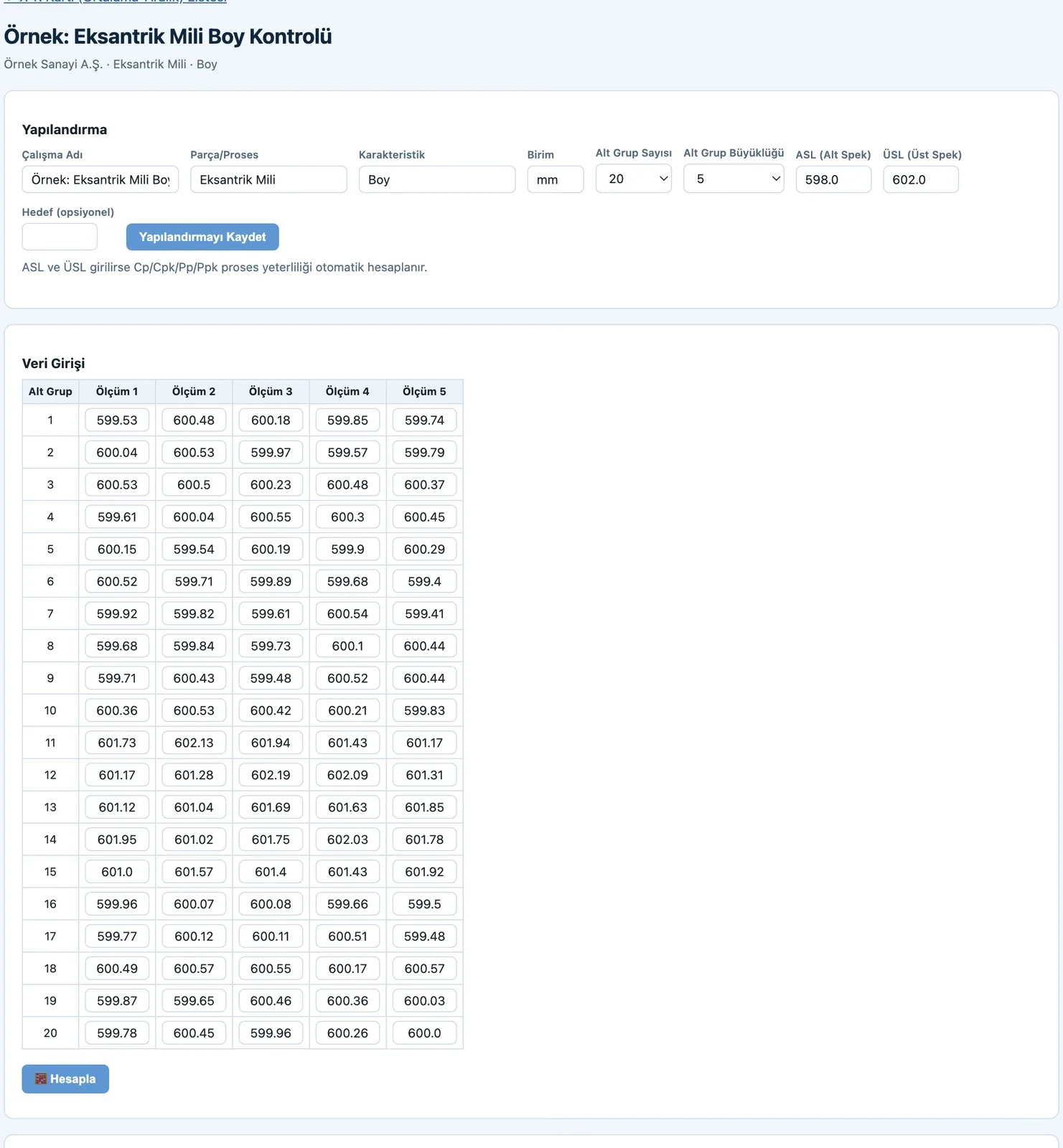
SPC — Enter the data
3. Enter the dataSet subgroup count and size and enter the readings; add lower/upper spec limits and process capability is computed automatically too.
SPC — See the control chart
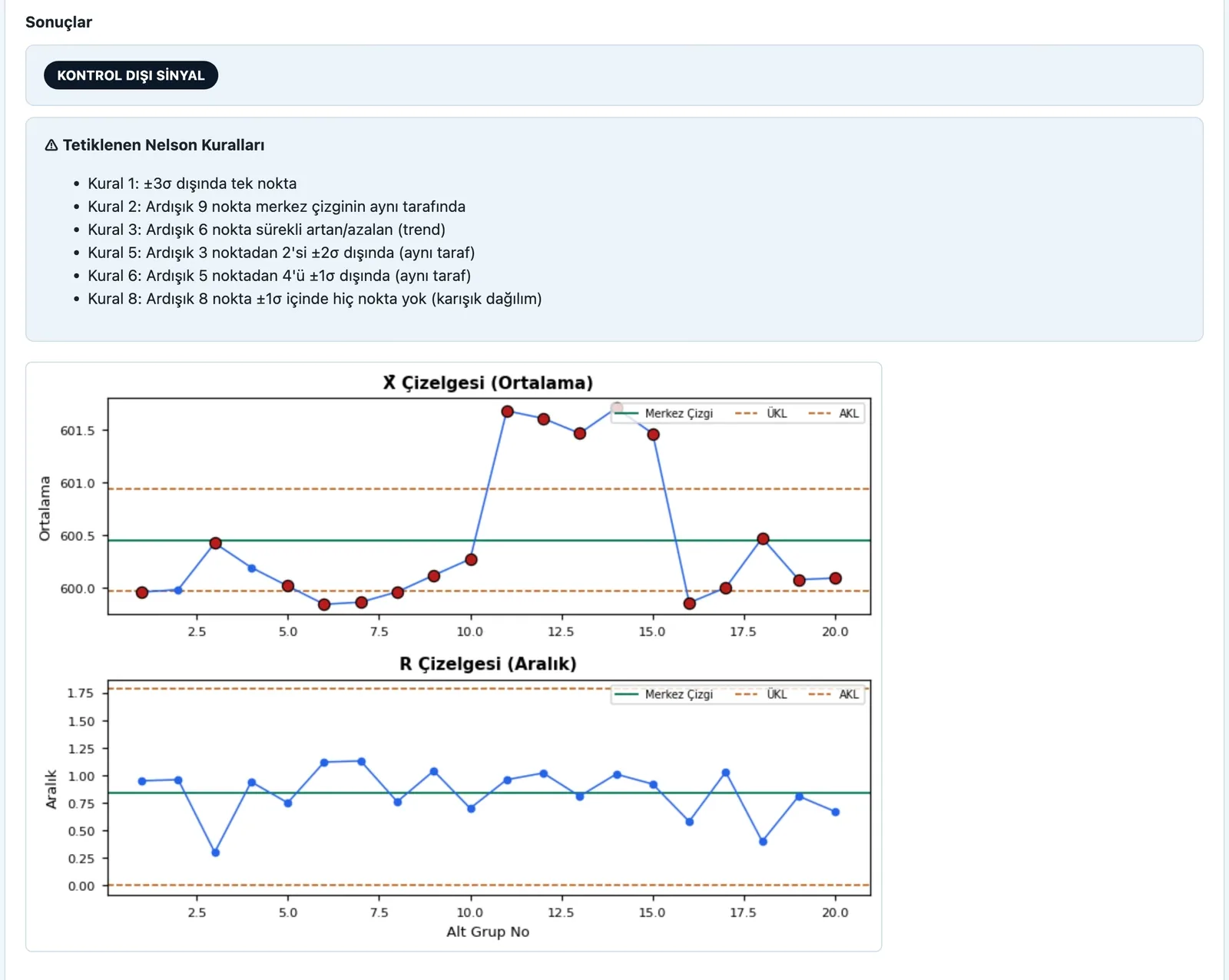
4. See the control chartThe centre line and UCL/LCL control limits are computed automatically; out-of-control signals are detected with the 8 Nelson rules and marked on the chart.
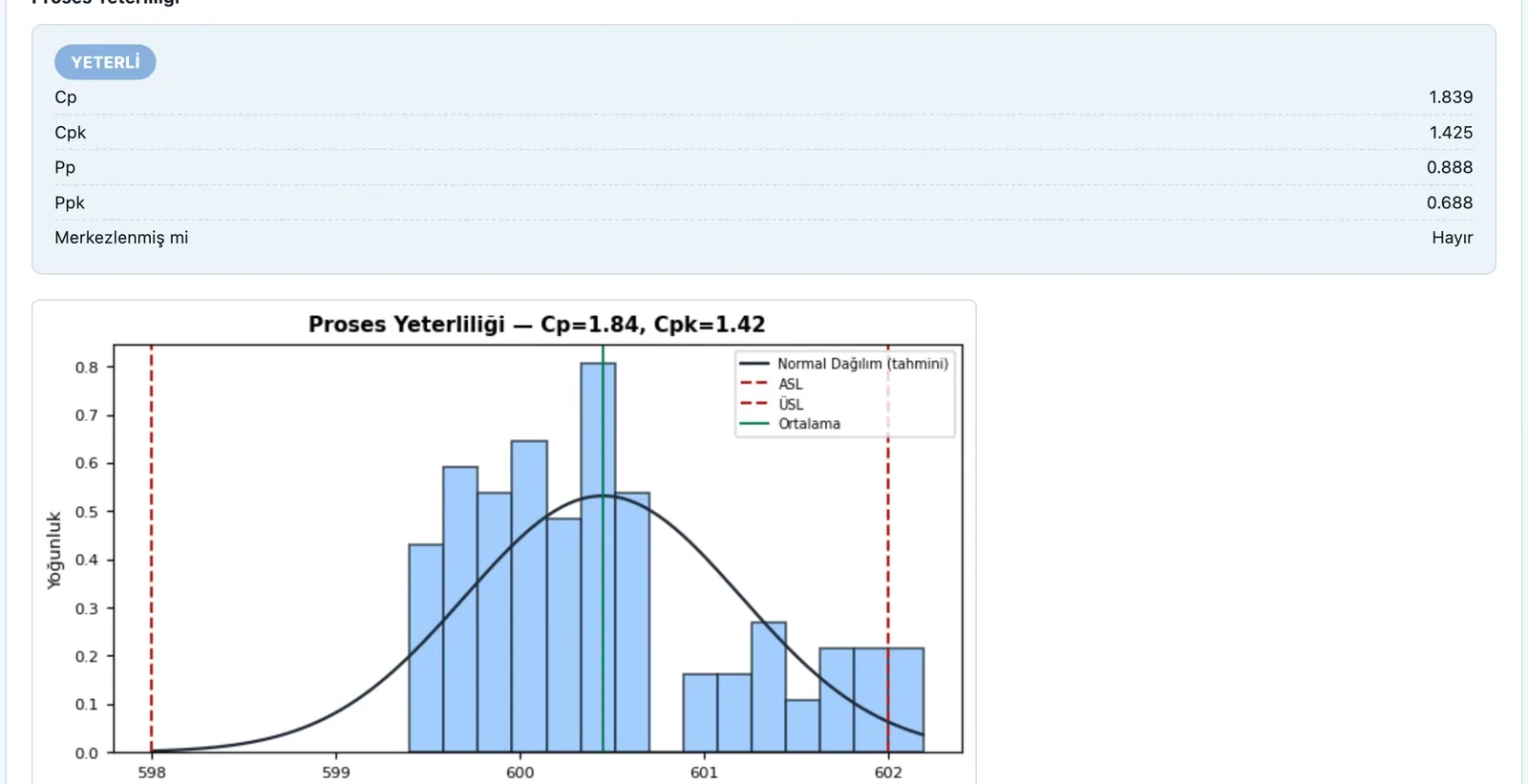
SPC — Measure process capability
5. Measure process capabilityCp, Cpk, Pp and Ppk indices are computed with a histogram and normal curve; capable/not-capable is judged automatically and the result is exported as PDF/CSV.

SPC · Explore

PPAP · Submit for approval

Production Part Approval Process

Prepare your production part approval package in a few steps — from the 18 elements to the PSW and report.
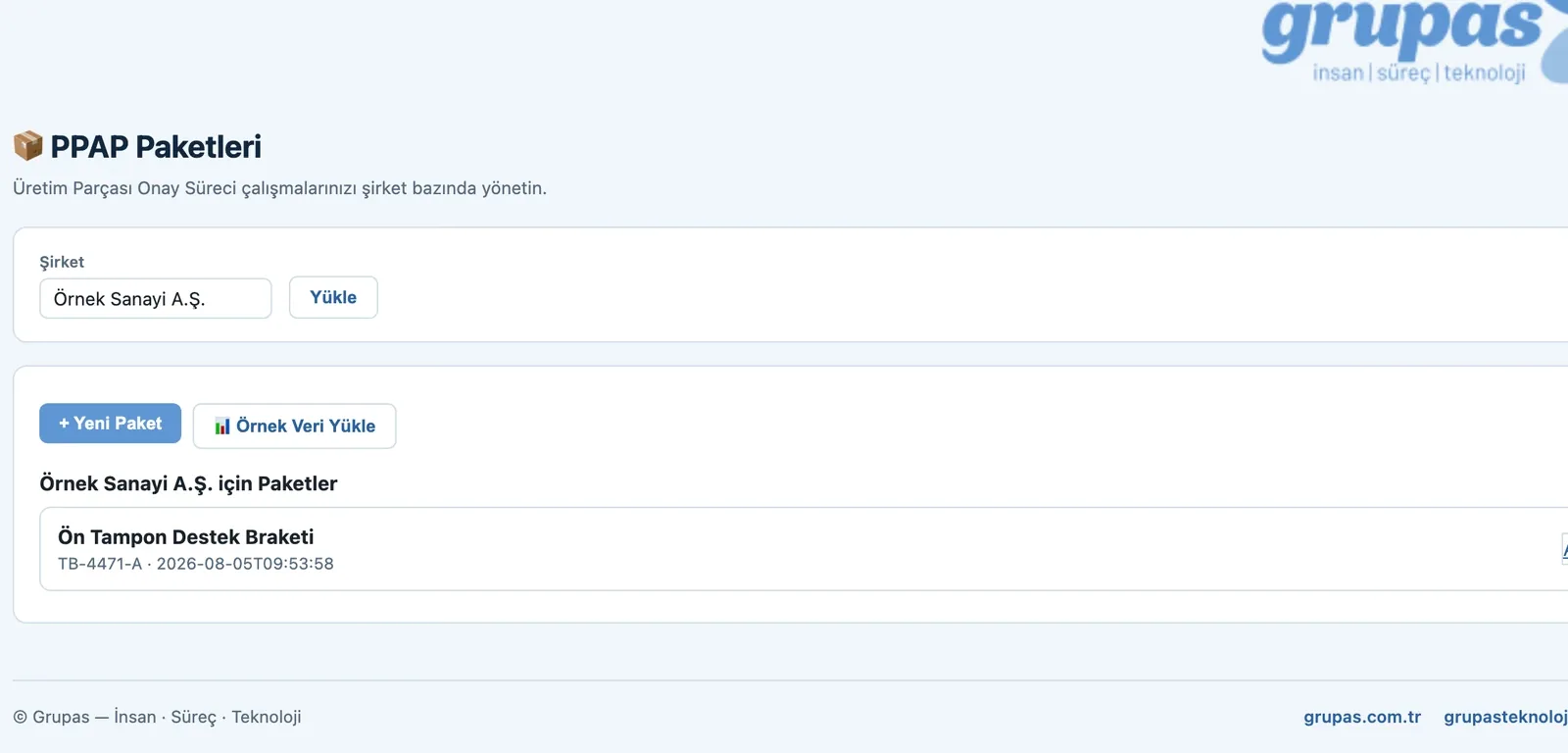
PPAP — Create a package
2. Create a packageEnter company, part and submission level (1–5); create a new package or try ready sample data.
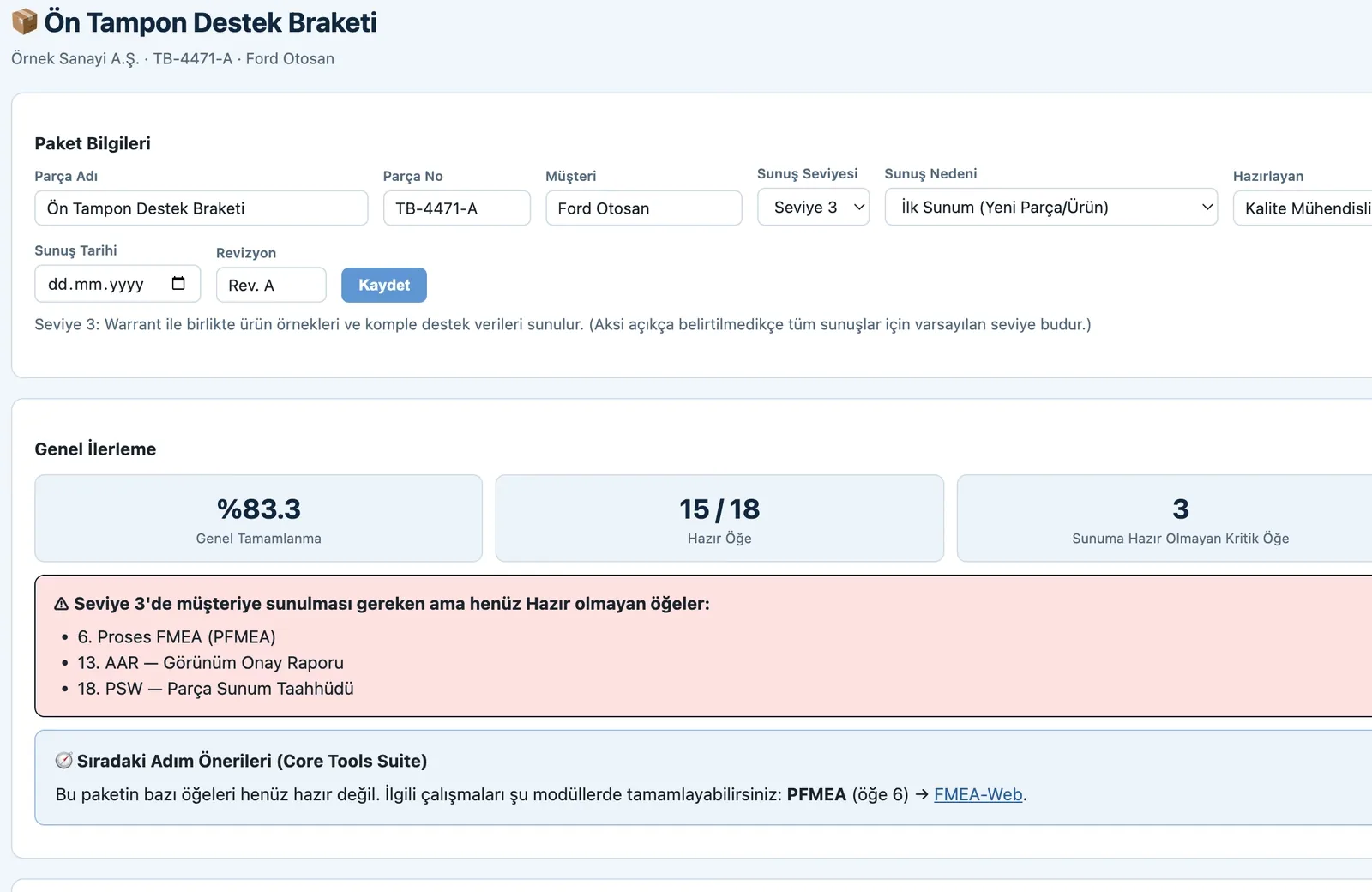
PPAP — Package details & readiness
3. Package details & readinessEnter part, customer and submission reason. Number of ready elements, overall readiness and critical not-ready items are summarized instantly.
PPAP — Manage the 18 PPAP elements
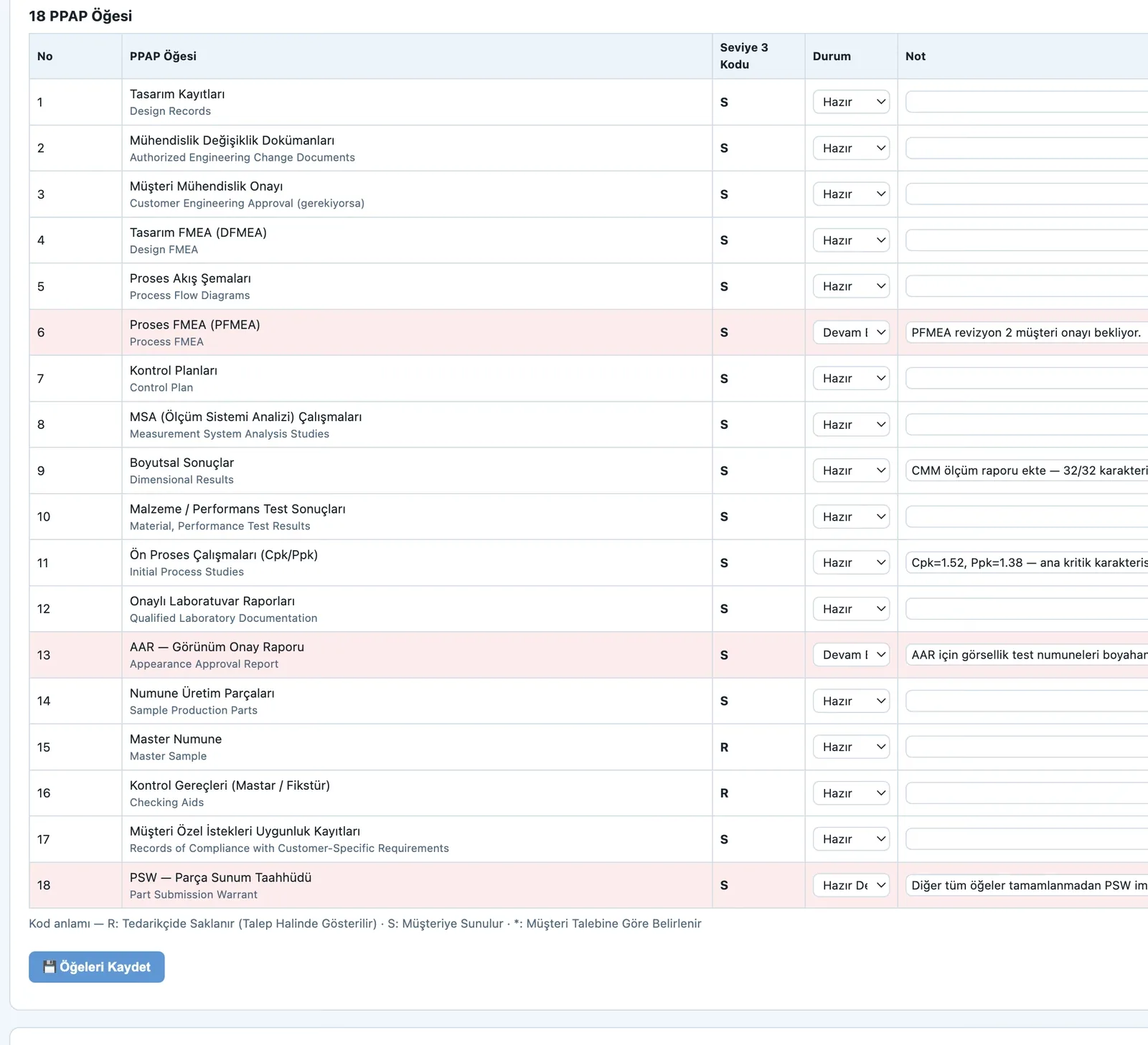
4. Manage the 18 PPAP elementsTrack each of the 18 PPAP elements per AIAG, with the code of your chosen submission level (S/R/*) and a Ready/In-progress status.
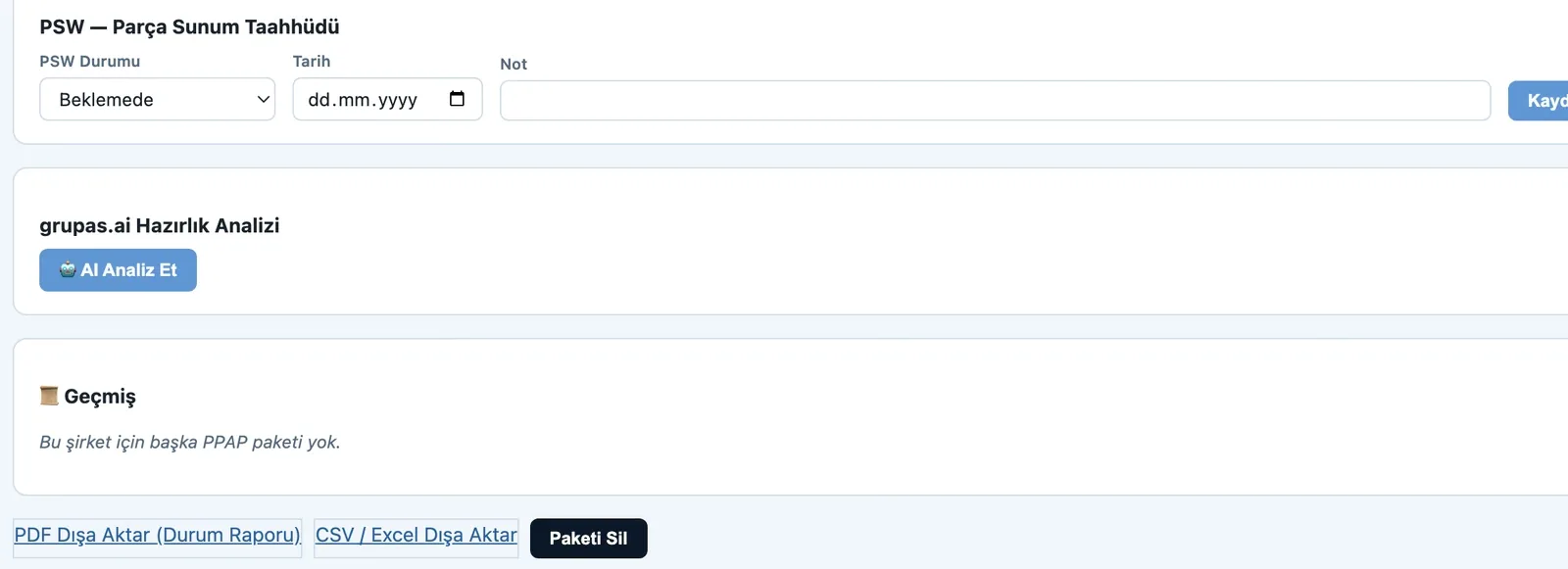
PPAP — PSW & reporting
5. PSW & reportingUpdate the Part Submission Warrant (PSW) status, analyze package readiness with grupas.ai and export the package as PDF/CSV.

PPAP · Explore

See your Core Tools work in one platform

Write to us for a live walkthrough on sample data.

WhatsApp
GURU

GURU · QUALIX assistant

Ask about modules, licenses and Core Tools.

+90 538 390 29 78 info@grupas.com.tr
Hi, I'm GURU! I can answer your questions about QUALIX and its Core Tools modules (APQP, FMEA, Control Plan, MSA, SPC, PPAP).